Applies to: Sons of the Forest on the Gravel Host Panel · Time: about 5 minutes · Difficulty: Intermediate
Customize gameplay parameters on your Sons of the Forest dedicated server, including enemy difficulty, day/night cycles, season speeds, and survival rules using dedicatedserver.cfg and the Gravel Host panel.
¶ Before you start
-
An active Sons of the Forest dedicated server on Gravel Host. Order or manage your server here
-
Panel access with File Manager permissions.
-
Stop container requirement: Always stop the server container in the panel before modifying configuration files. When Sons of the Forest stops or restarts, the running dedicated server process flushes its active memory state back to disk, which immediately overwrites any manual edits saved while the container was running.
¶ Steps
-
Stop your Sons of the Forest server container: Open your Gravel Host server dashboard and click the red Stop button in the upper control banner. Wait for the status indicator to switch to OFFLINE before opening the file editor.

-
Open dedicatedserver.cfg in the File Manager: In the left sidebar navigation, click Files, navigate into the
serverconfig/directory, and clickdedicatedserver.cfgto open the file in the built-in code editor. -
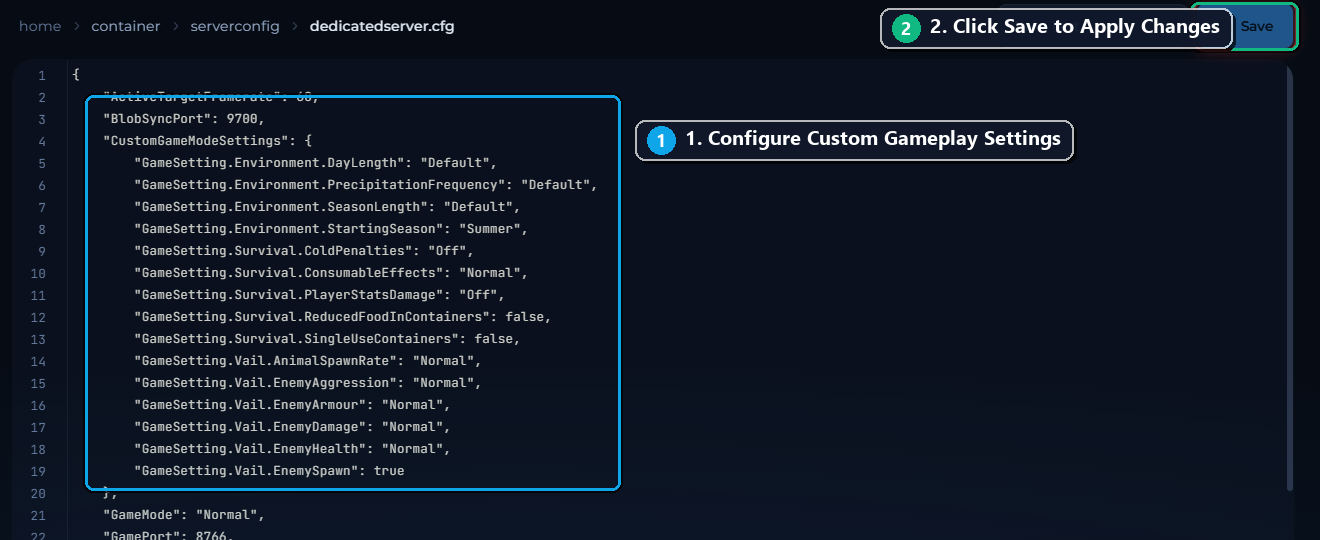
Configure CustomGameModeSettings and Gameplay Rules: In the editor, locate the
"CustomGameModeSettings"JSON block (1). Adjust your desired survival and environment settings, such as day speed, seasonal progression, and enemy aggression:"CustomGameModeSettings": { "GameSetting.Environment.DayLength": "Default", "GameSetting.Environment.PrecipitationFrequency": "Default", "GameSetting.Environment.SeasonLength": "Default", "GameSetting.Environment.StartingSeason": "Summer", "GameSetting.Survival.ColdPenalties": "Off", "GameSetting.Survival.ConsumableEffects": "Normal", "GameSetting.Survival.PlayerStatsDamage": "Off", "GameSetting.Survival.ReducedFoodInContainers": false, "GameSetting.Survival.SingleUseContainers": false, "GameSetting.Vail.AnimalSpawnRate": "Normal", "GameSetting.Vail.EnemyAggression": "Normal", "GameSetting.Vail.EnemyArmour": "Normal", "GameSetting.Vail.EnemyDamage": "Normal", "GameSetting.Vail.EnemyHealth": "Normal", "GameSetting.Vail.EnemySpawn": true }Once your modifications are complete, click the blue Save button in the top right corner of the editor (2).
-
Restart your server: Navigate back to the server controls banner and click the yellow Restart button (or click Start) to launch the server container with your updated settings.

-
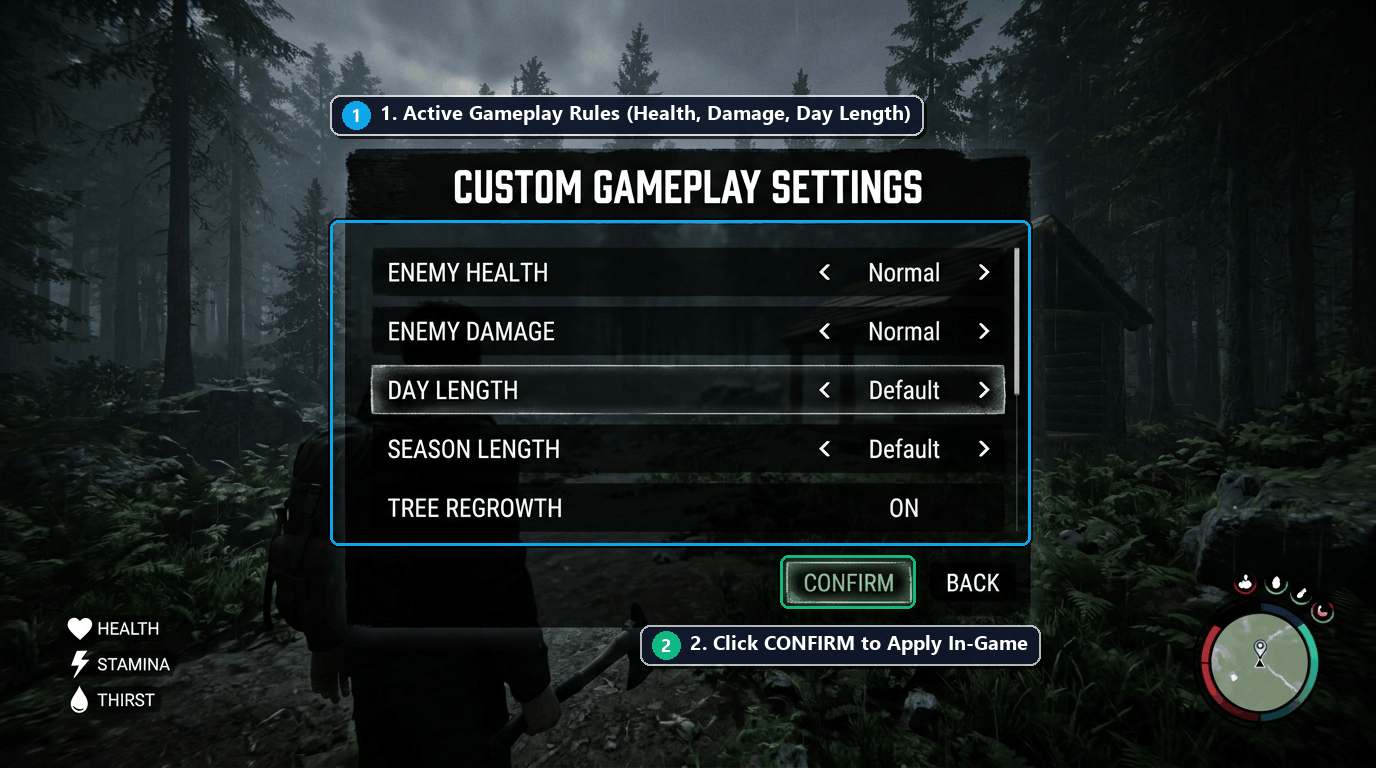
Verify active settings in-game: Connect to your server from the Steam multiplayer browser. Once loaded into the world or during the lobby setup, confirm that your custom day progression, enemy damage scaling, and environmental rules are actively applied.
¶ Check it worked
-
In Panel Console: The Gravel Host console logs
Loaded CustomGameModeSettings successfullyduring container initialization without JSON parse exceptions. -
In-Game: When fighting cannibals or observing the day/night progression, enemy health pools and daylight cycles match your chosen configuration values.
¶ Troubleshooting
¶ Server fails to boot with JSON parsing error
Sons of the Forest relies on strict JSON parser formatting. The most common cause of server crash loops after editing dedicatedserver.cfg is a trailing comma on the final key in a block (e.g. putting a comma after "GameSetting.Vail.EnemySpawn": true, right before the closing brace }). Ensure all JSON keys are enclosed in double quotes and no extra trailing commas exist.
¶ Settings reverted to default on boot
If your custom values revert back to default values after restarting, the edits were saved while the game server process was still running in memory. Always click Stop on the Gravel Host dashboard, wait for the OFFLINE status, edit and save dedicatedserver.cfg, and then click Start.
¶ Startup tab settings overriding dedicatedserver.cfg
Certain top-level keys like ServerName, MaxPlayers, and BlobSyncPort are managed as environment variables in the Gravel Host Startup tab. If you modify these specific keys directly in dedicatedserver.cfg, the startup script may re-inject the panel values on container boot. For server name and player limits, always update them under the Startup tab.
¶ Related guides
- How to Set a Password on Sons of the Forest Server
- How to Install Mods & RedLoader on Sons of the Forest
Still stuck? Our team is on Discord, or open a ticket from the Billing Panel.