Applies to: Sons of the Forest on the Gravel Host Panel · Time: about 3 minutes · Difficulty: Beginner
Protect your Sons of the Forest dedicated server from unauthorized players by configuring a server password in the Gravel Host panel.
¶ Before you start
-
An active Sons of the Forest dedicated server on Gravel Host. Order or manage your server here
-
Panel access with File Manager permissions.
-
Stop container requirement: Always stop your server in the Gravel Host dashboard before editing configuration files. When the container stops, the game server process overwrites disk files with its running memory state, which wipes out edits made while active.
¶ Steps
-
Stop your Sons of the Forest server container: Open your Gravel Host dashboard and click the red Stop button in the top control bar. Confirm the server status shows OFFLINE before proceeding.

-
Open dedicatedserver.cfg in the File Manager: In the left sidebar navigation, click Files, navigate into the
serverconfig/folder, and clickdedicatedserver.cfgto open the file editor. -
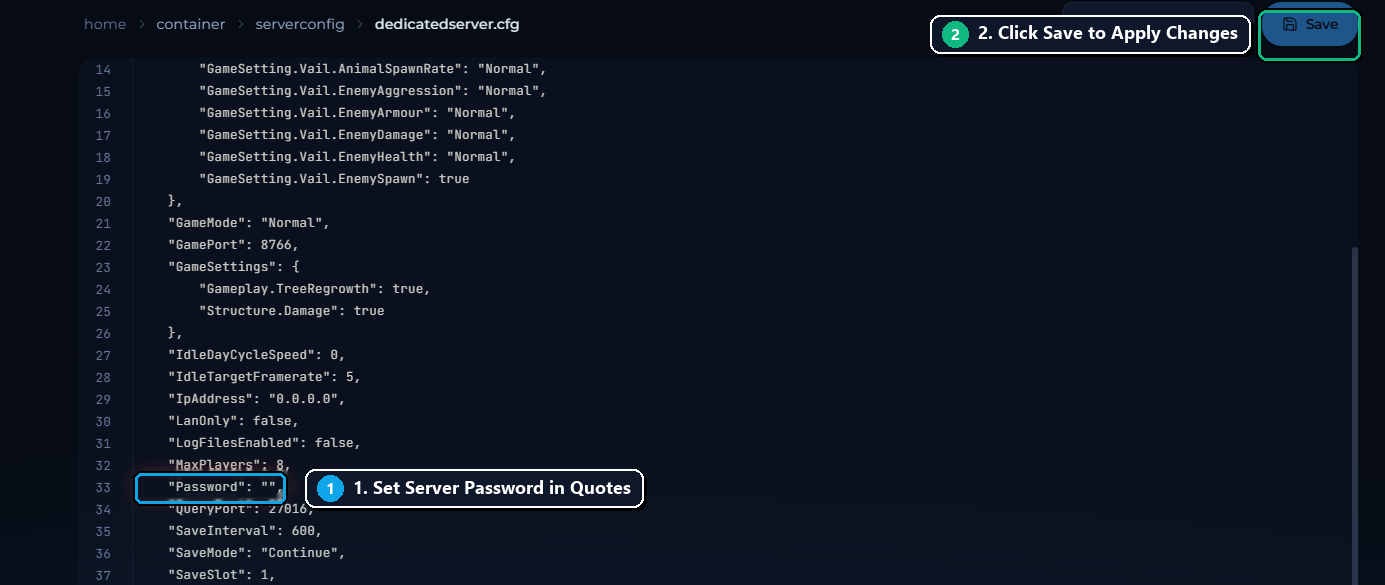
Set your server password in quotes: Scroll down to line 33 to find the
"Password"setting (1). Type your desired password inside the double quotation marks:"Password": "MySecretPassword123",Ensure there are no spaces outside the quotation marks, and do not remove the trailing comma at the end of the line. Click the blue Save button in the upper right corner (2).
-
Start your server: Return to the console or server header and click the green Start button to launch the server container with password protection enabled.

-
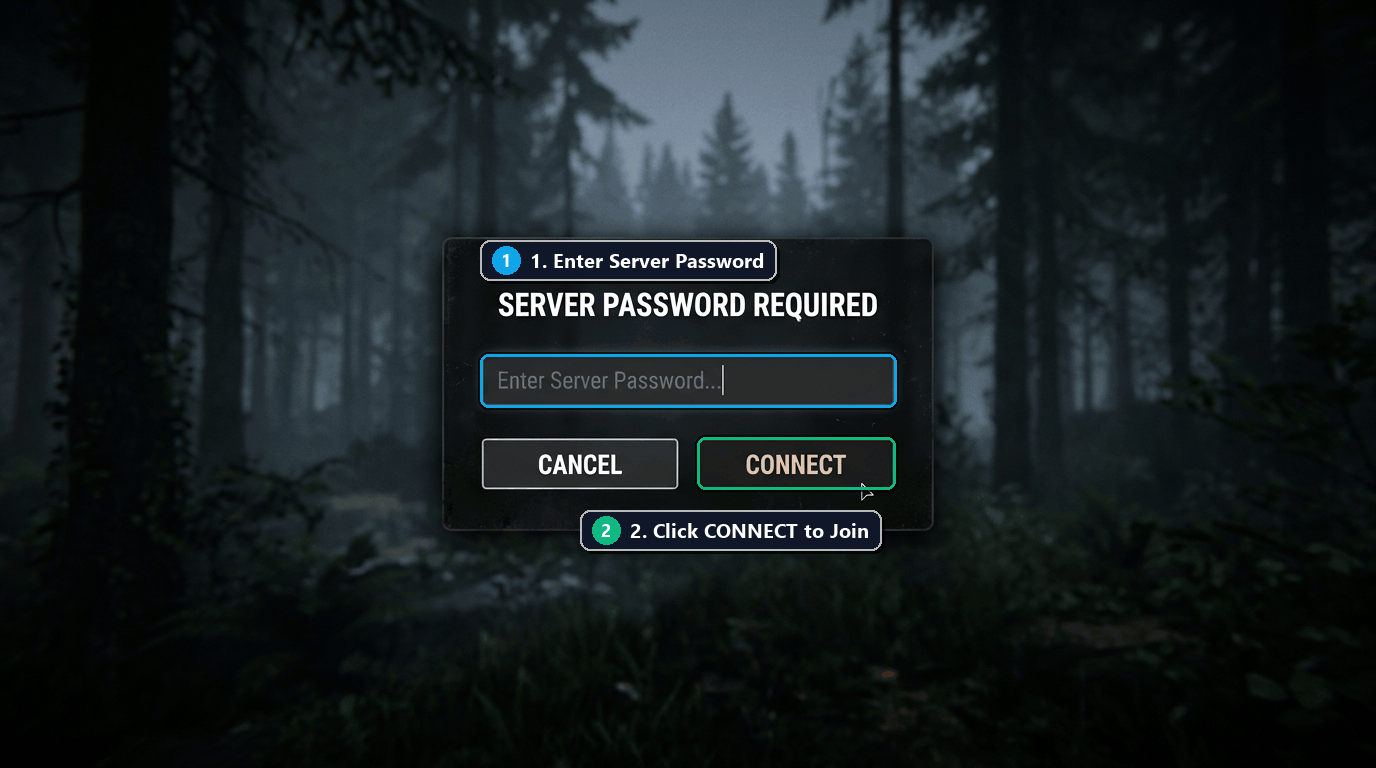
Verify password prompt in-game: Launch Sons of the Forest on Steam, open the Multiplayer server browser, find your server, and click Join (or connect via the Direct button). The game immediately prompts you with the SERVER PASSWORD REQUIRED dialog (1). Enter your password and click Connect (2) to enter the world.
¶ Check it worked
-
In Panel Console: The Gravel Host console displays
Dedicated server initialized with password protection: YESduring startup logs. -
In-Game: When clicking Join on your server in the multiplayer list, the SERVER PASSWORD REQUIRED modal appears, preventing unauthenticated players from joining.
¶ Troubleshooting
¶ Players can join without entering a password
If players bypass the password prompt, verify that "Password": "" was not saved with an empty string or left with default placeholder values. Also ensure the server was fully restarted after saving dedicatedserver.cfg.
¶ Password containing special characters causes boot failure
Avoid using quotation marks (") or backslashes (\) inside your password string, as these will escape or break the JSON file syntax. If your server enters a crash loop after setting a password, revert to an alphanumeric password (letters and numbers only) and restart.
¶ Forgot your server password
If you or your friends forget the password, you do not need to reinstall the server. Simply click Stop in the panel, open serverconfig/dedicatedserver.cfg, view or change the string in "Password": "...", save the file, and click Start.
¶ Related guides
Still stuck? Our team is on Discord, or open a ticket from the Billing Panel.