Applies to: Sons of the Forest on the Gravel Host Panel · Time: about 3 minutes · Difficulty: Beginner
Connect to your Sons of the Forest dedicated server using the in-game Dedicated Server browser or Direct Connect IP options on the Gravel Host panel.
¶ Before you start
-
An active Sons of the Forest dedicated server on Gravel Host. Order or manage your server here
-
Sons of the Forest installed on your PC via Steam.
-
Note your Server Name (from the Startup tab or
dedicatedserver.cfg.json) and your IP Address & Game Port from the panel dashboard.
¶ Steps
-
Copy your server IP and port from the Gravel Host panel: In the panel, open your Sons of the Forest server dashboard and locate your IP and Port in the header banner. Click the highlighted Copy icon next to the address.

-
Ensure your server is running: Verify that the server is online. If it is stopped, click the green Start button in the upper control banner and allow 1–2 minutes for the game container to initialize.

-
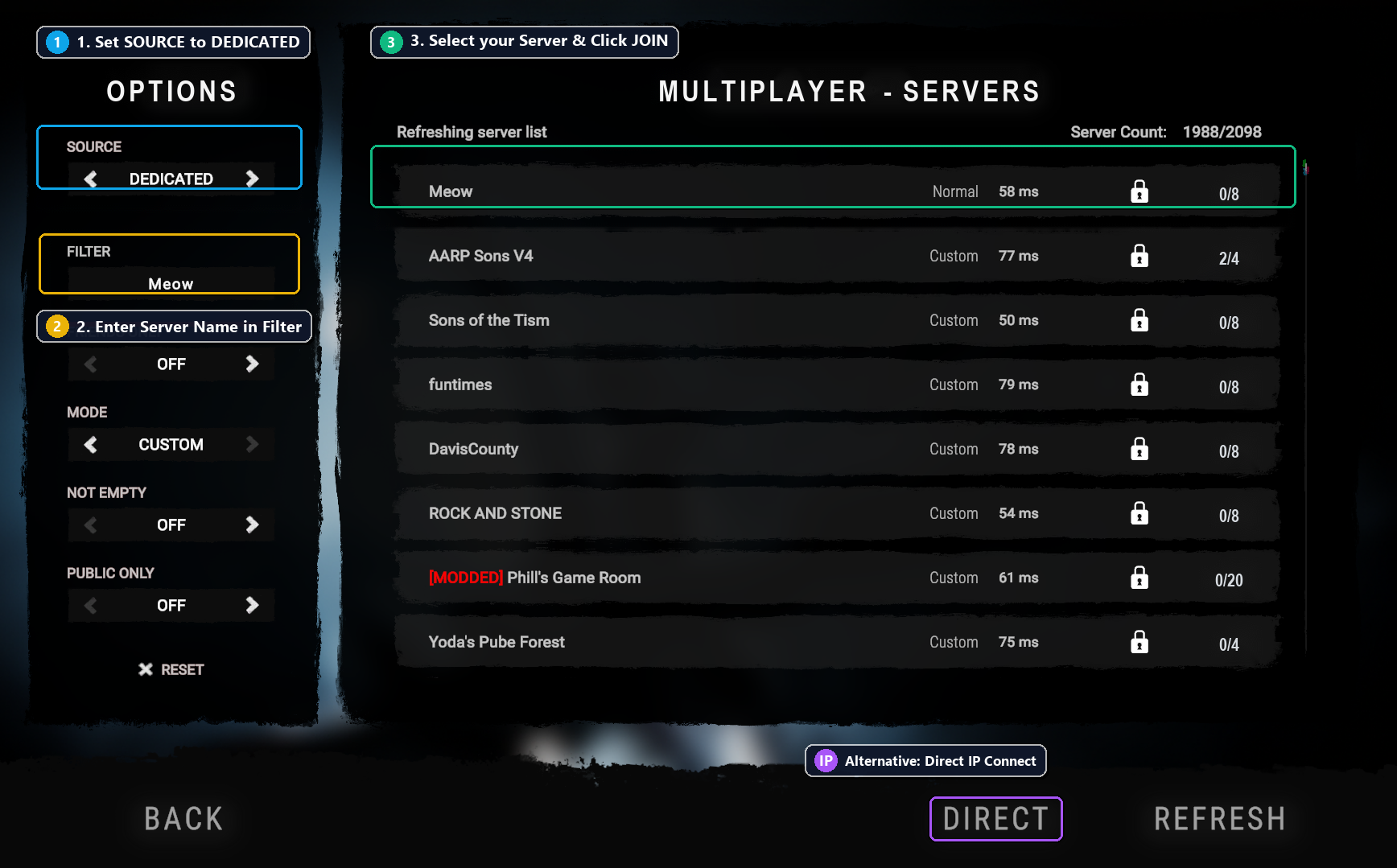
Join via the in-game server browser: Launch Sons of the Forest on Steam, click Multiplayer, and select Join. In the options column on the left, change Source to Dedicated (1), type your server name into the Filter field (2), and click your server in the list to select Join (3).
-
Connect directly via IP and Port (Alternative Method): If your server does not immediately populate in the public browser, click the Direct button at the bottom of the server browser screen. Paste your Gravel Host IP address and game port (e.g.
51.89.23.45:8766) into the input box (1), then click Connect (2).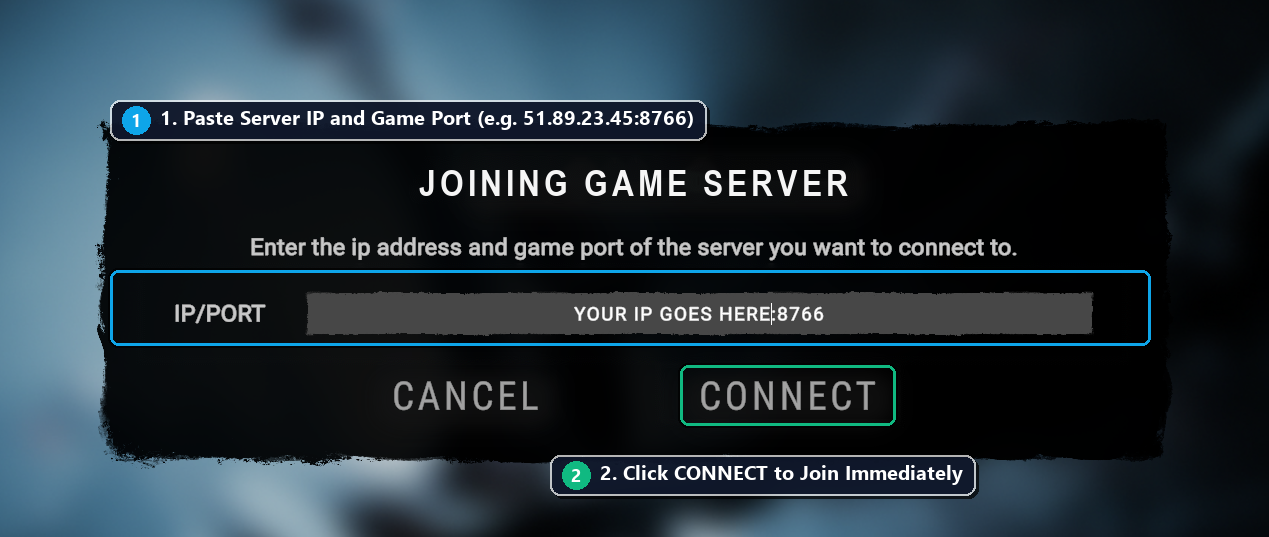
-
Bookmark in Steam Server Favorites (Optional Steam Fallback): You can also pin your server directly to your Steam client. Open Steam, click View → Game Servers, switch to Favorites, click the + (Add Server) button, and enter your server IP with the Query Port (
27016).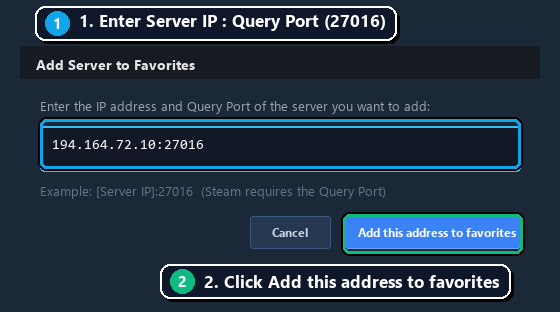
¶ Check it worked
-
In-Game: The loading screen displays "Game is Starting..." and loads your character into the multiplayer lobby or the helicopter intro sequence on the island.
-
In Panel: The Gravel Host console logs
Player [SteamID] connected to dedicated serverand the active player count updates from0/8to1/8.
¶ Troubleshooting
¶ Server does not appear in the Dedicated Server list
Wait 60–120 seconds after starting the server before searching. Dedicated servers register with Valve's Steam master server list upon container boot, which introduces an intentional broadcast delay. Also double-check that the Source filter is explicitly set to Dedicated (the game defaults to Peer-to-Peer).
¶ Game Port vs. Query Port
Sons of the Forest uses two primary UDP ports:
-
Game Port (
8766UDP): Used for connecting directly in-game via the Direct button. -
Query Port (
27016UDP): Used by Steam's external server browser and favorites list.
Always verify your allocated ports under the Network tab in the Gravel Host panel.
¶ "Dedicated server is not accessible from the outside"
Behind Docker container NAT and DDoS mitigation filtering, Sons of the Forest's built-in network self-test may report a false failure on startup. In the File Manager, open serverconfig/dedicatedserver.cfg, set "SkipNetworkAccessibilityTest": true, save the file, and restart your server.
¶ Password Prompt Fails
If your server has a password configured in dedicatedserver.cfg or panel Startup variables, ensure all connecting players enter the exact case-sensitive password. Leaving the password field empty will cause the server to reject the connection silently.
¶ Related guides
Still stuck? Our team is on Discord, or open a ticket from the Billing Panel.